How to Use Phantom Wallet Safely: A Beginner’s Guide
A comprehensive guide on how to use Phantom wallet safely, covering setup, transactions, staking, and essential security best practices.

- Phantom is a self-custodial hot wallet supporting 8+ blockchains, meaning you control your private keys, but being always online makes security essential.
- Phantom's popularity stems from its intuitive interface, built-in token swaps, multi-chain support, and Solana-native tools that outperform competitors.
- Never share your recovery phrase or approve transactions blindly, and combine Phantom with a hardware wallet for larger holdings.
- Good wallet hygiene such as revoking unused approvals, verifying sites, and using real-time protection tools like Kerberus, is key to staying safe.
Introduction
Phantom is one the most beloved crypto wallets for Web3 users, especially those degens in the Solana ecosystem. This innovative wallet application, which saw a great uptick in usage in 2025 thanks to the rise of meme coins and prediction markets, is mainly used to receive, store, send, and swap your digital assets on several blockchains.
Of course, owning a Web3 wallet with some crypto assets in it is only half the battle. Protecting it against Web3 security threats like various forms of phishing, address poisoning and wallet draining means constant vigilance and the use of real-time threat detection tools like Kerberus.
Whether you are a newbie or a pro, this comprehensive guide on how to use the Phantom wallet will make your life easier, and keep your funds safe.
What is Phantom Wallet?
Overview of Phantom Wallet
Phantom wallet is a self-custodial hot wallet. This means that you, and only you, control your private keys. If you have been in this industry for a minute, then you have heard the phrase “not your keys, not your crypto”.
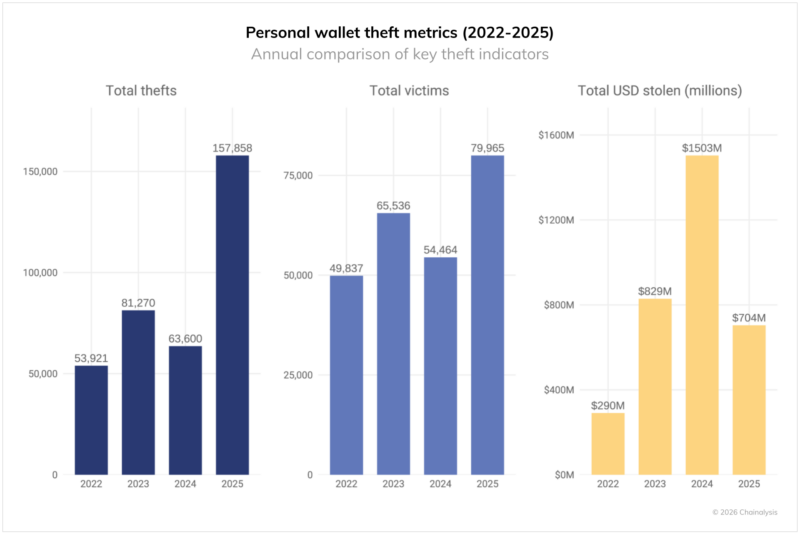
This is very important when you realize that personal wallet breaches accounted for one-fifth of the total value stolen in crypto ($3.4 billion) in 2025, affecting at least 80,000 unique victims.
As a custodial wallet, the Phantom wallet only provides you with the tools to manage your digital assets on the blockchain. However, it is a hot wallet, meaning that it is always connected to the internet and could be a moving target for hackers.
Supported Blockchains and Ecosystems
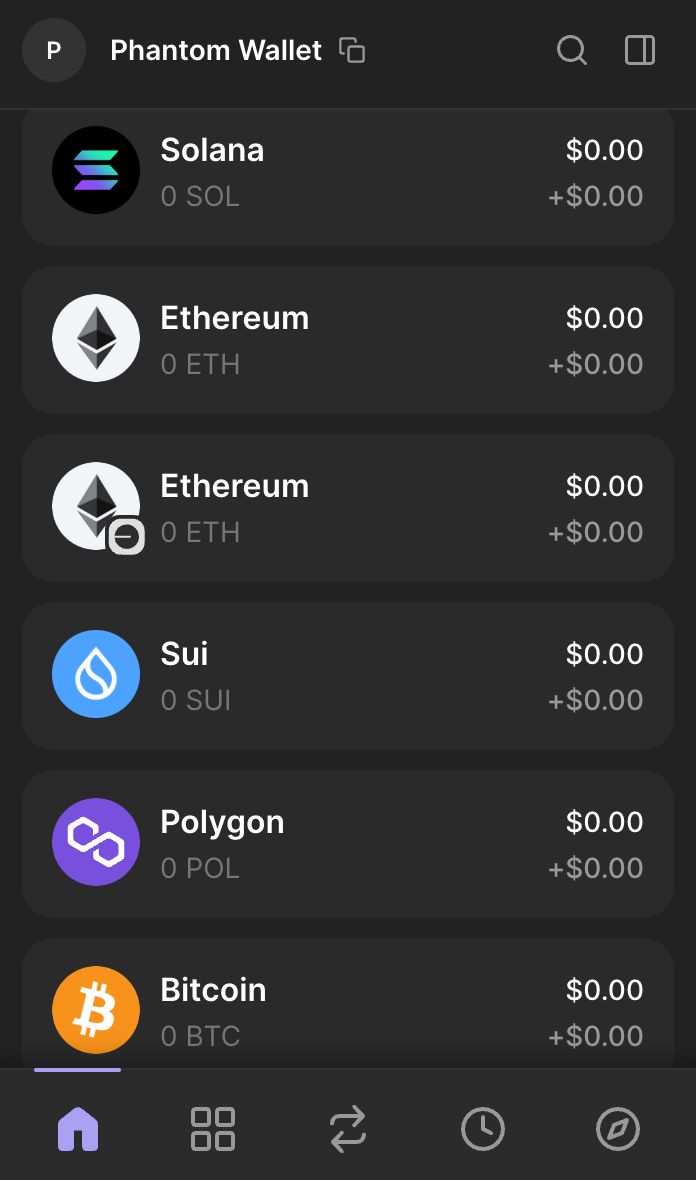
Phantom wallet was first launched on Solana, but has since expanded into a multi-chain ecosystem. This simplifies multi-chain operations such as token swaps, NFT management, and dApp connections, without relying on third-party intermediaries.
The supported blockchains are as follows:
- Solana - native blockchain support plus advanced features (liquid staking, among others).
- Ethereum - ERC-20 tokens
- Bitcoin - Ordinals support
- Polygon
- Base - Coinbase’s growing Layer 2 (L2) solution
- Sui - fast and scalable blockchain protocol
- Monad - EVM chain
- HyperEVM
What Makes Phantom a Great Wallet?
Phantom is known as one of the quickest and easiest wallets to use, with the added benefit of enabling integrated token swaps for cross-chain trades. Its intuitive user interface charms new users, while liquid staking is geared towards DeFi veterans. It also rolls out new features at a regular clip, trying to stay ahead of competitors like Solflare.
Here’s what Phantom offers its users:
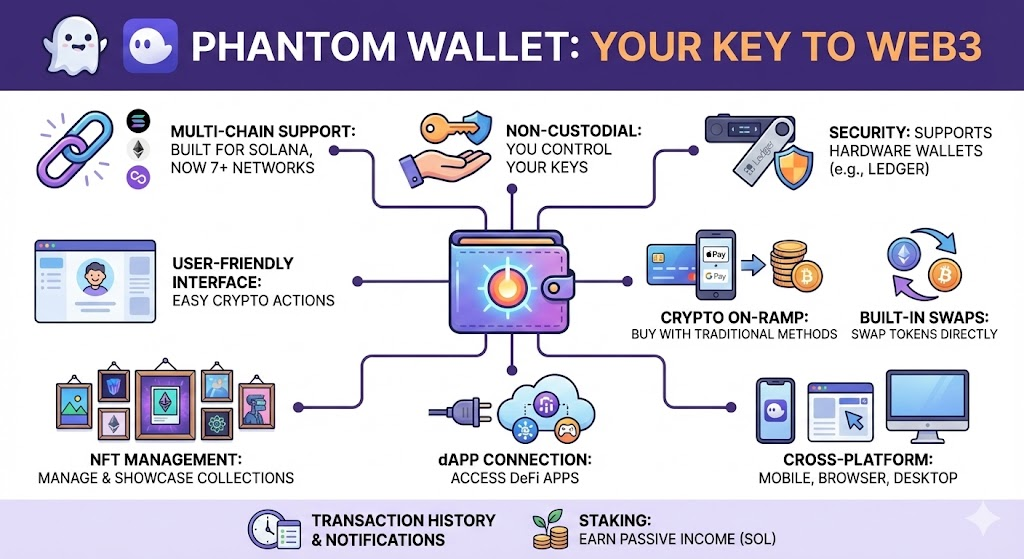
- Multi-chain support - built for Solana, but now supported on 7 blockchain networks.
- User-friendly interface - makes crypto actions easier and manageable.
- Crypto on-ramp - buy crypto via Apple/Google Pay and 3rd parties
- Non-custodial - you control your keys.
- Security - Supports hardware wallets, including Ledger.
- Built-in swaps - directly swap tokens in the wallet without using external exchanges.
- NFT management - manage and showcase your NFT collections.
- dApp connection - allows you to connect to DeFi apps
- Cross-platform - use as mobile app, browser extension, or standalone computer program.
- Transaction history and notifications - view and monitor your wallet activity with transaction history and alerts
- Staking - earn passive income by staking SOL tokens from the wallet.
Why Choose Phantom Wallet?
A wallet can have all the bells and whistles, but they all mean nothing if it is not secure. Phantom is non-custodial, which eliminates a single point of failure risk that crypto exchanges suffer from.
There are plenty more reasons why Phantom is a good wallet:
- No KYC verification required.
- Cheaper and faster transactions, specifically on Solana.
- Privacy-focused - collects minimum data.
- Automatic scam detection adds an important layer of security.
Advantages Over Competitors
- Phantom offers better Solana-native tools as it was specifically designed for the blockchain network from the ground up.
- No limit on tokens or transactions
- Cheaper swap fees that sometimes beat external DEXs.
How to Get Started with Phantom Wallet
Phantom offers a world of Web3 possibilities. Here’s how to take your first steps and get set up.
Step 1: Download and install Phantom on your phone or desktop
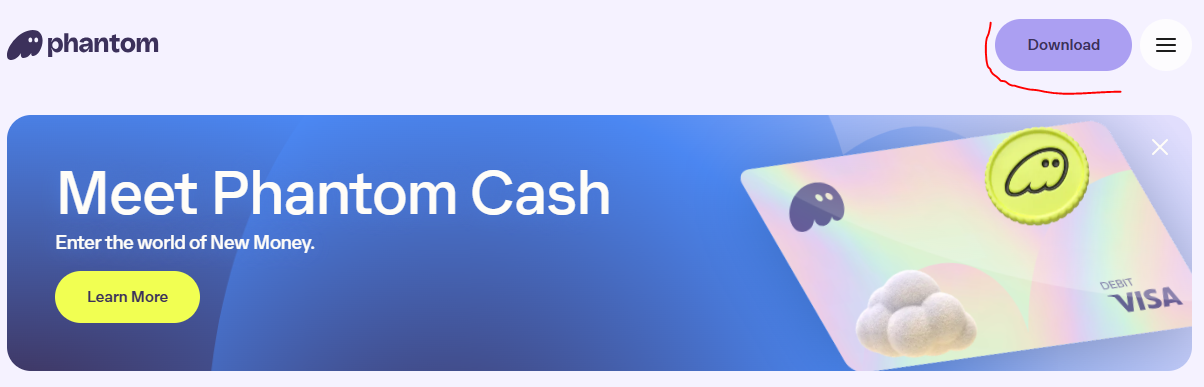
- Go to Phantom’s official website or your app store. Click on the “Download” button in the upper right corner.
WARNING: Be cautious when clicking any URL or downloading any app and make sure it’s the original, and not a phishing clone. Hackers and scammers create identical looking fake sites and apps to trick users.
On Desktop
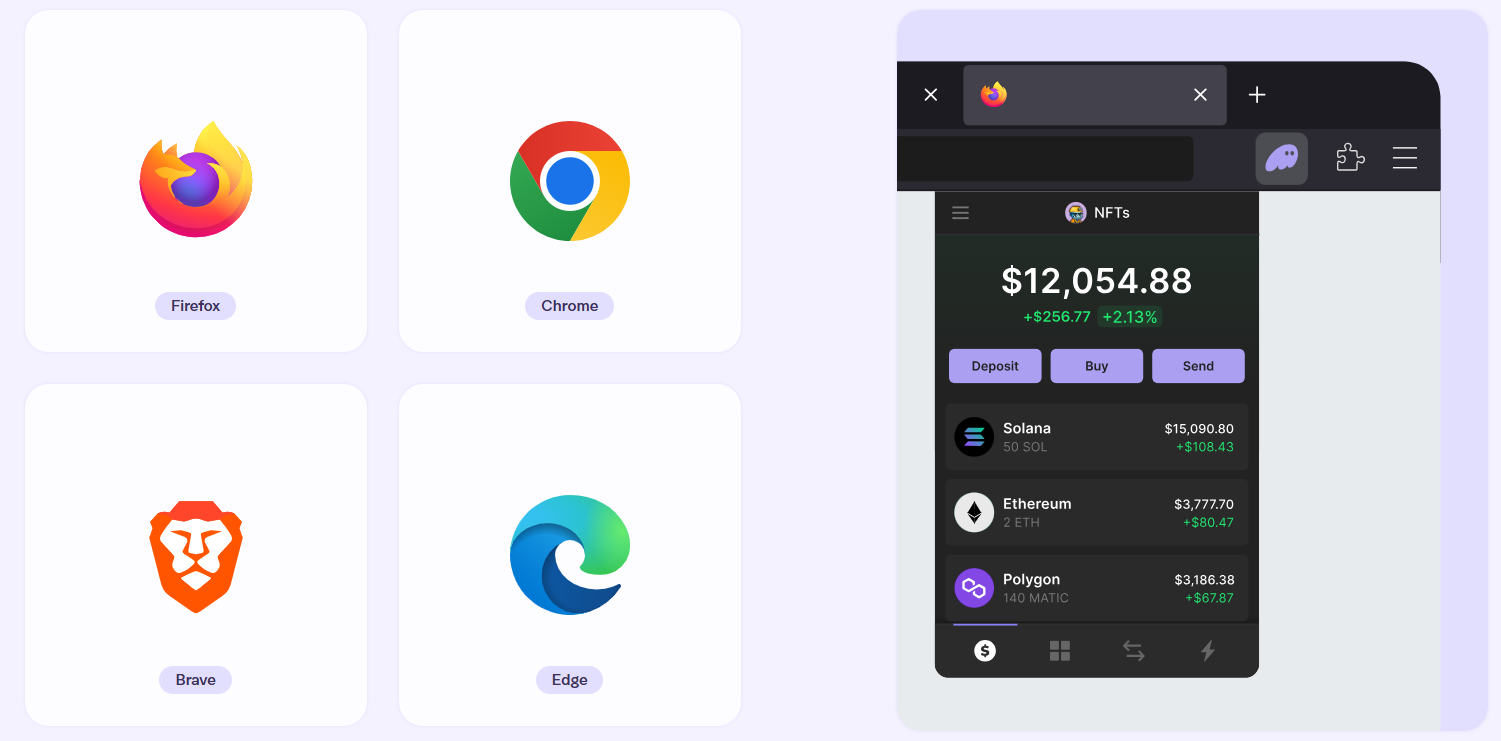
- After clicking the “Download” button, choose the correct extension based on your browser.
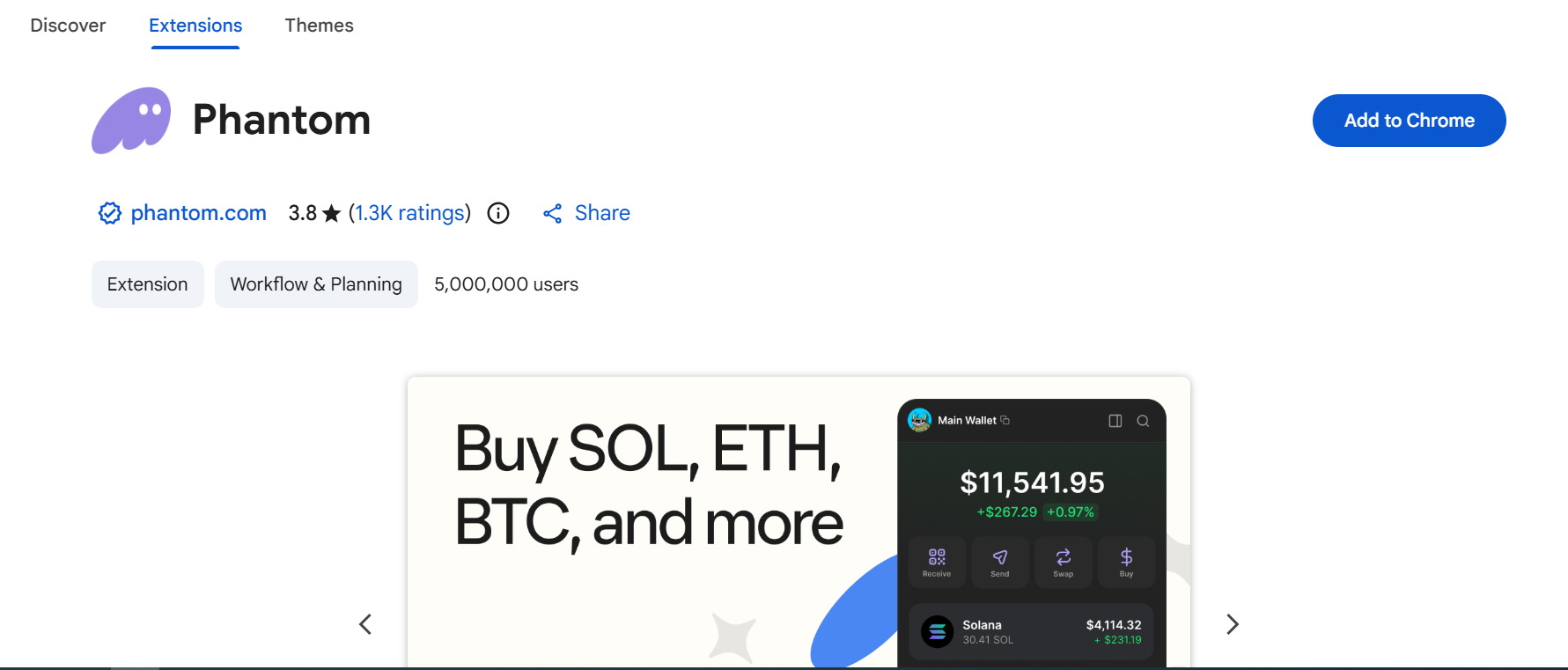
- For Chrome, click on the “Add to Chrome” button.
- Click on the “Add Extension” button in the pop-up box that appears.
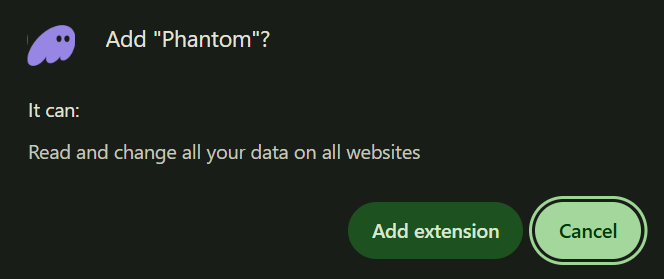
- After installing, your Phantom Wallet will load up and prompt you to create a new wallet or import an existing one.
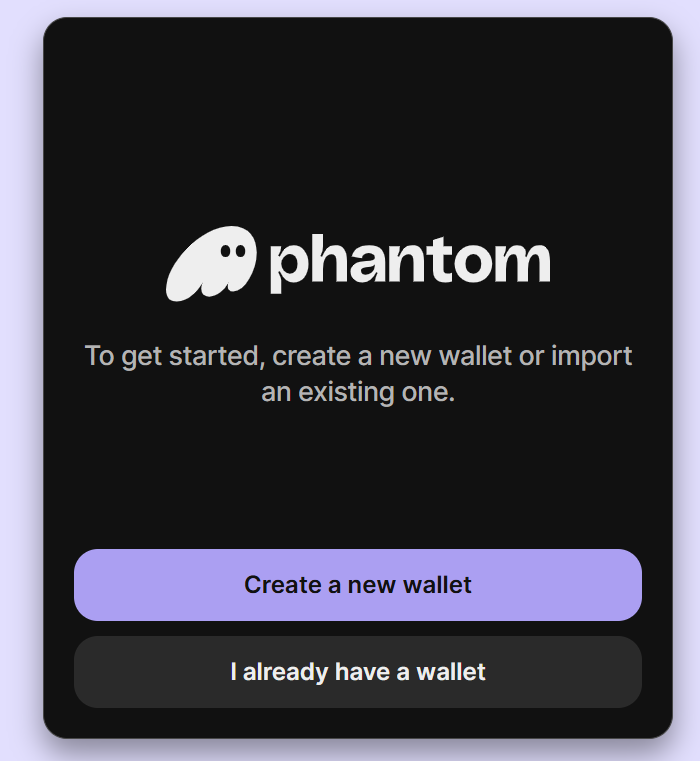
How to Create a New Phantom Wallet
- Click on “Create a new wallet,” and you will have the option to create your new Phantom wallet using an email address or password.
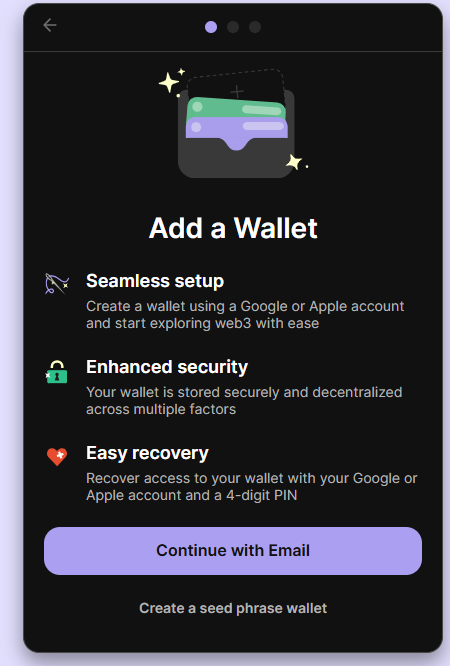
- Click on “Continue with Email” and choose either your Apple ID or your Google Email.
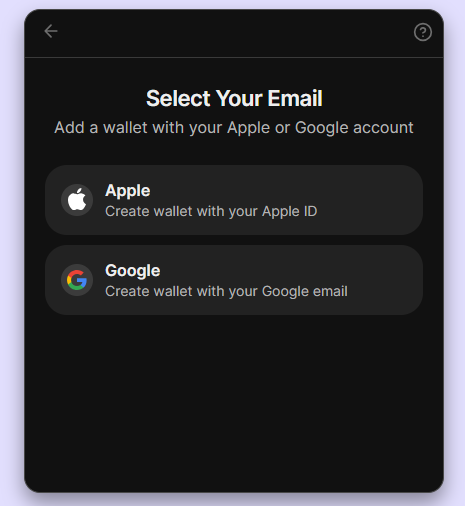
- For this tutorial, let’s go with Google email. Choose the Gmail account you want to use to open your Phantom wallet.
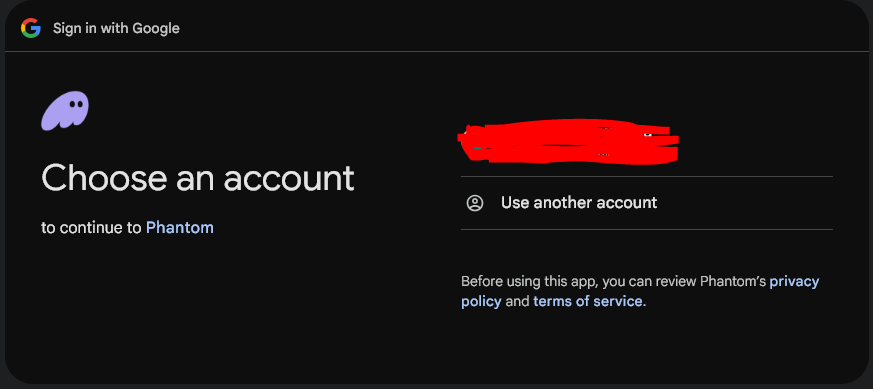
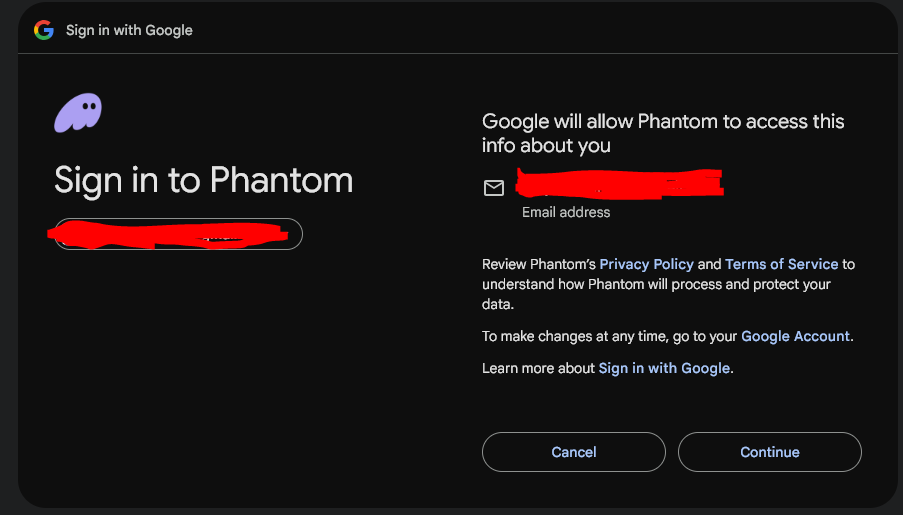
- Click “Continue” on the box that comes up.
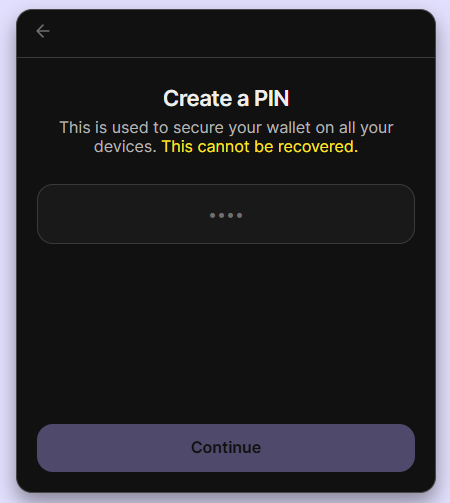
- Create a PIN
- Click “Continue” after entering your 4-digit PIN
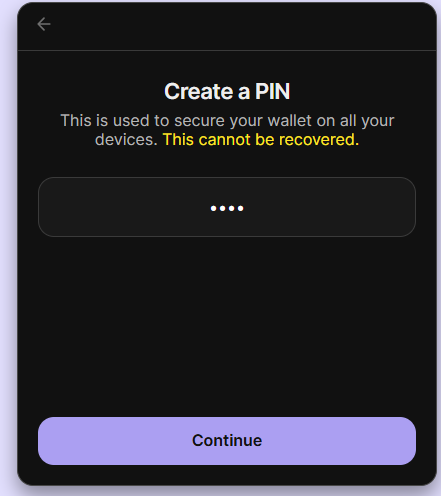
- Click on the “Create PIN” button to confirm your PIN.
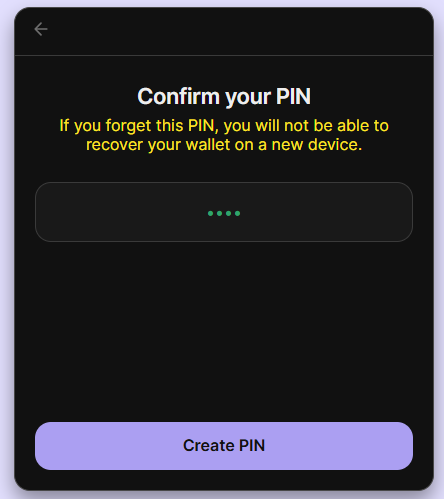
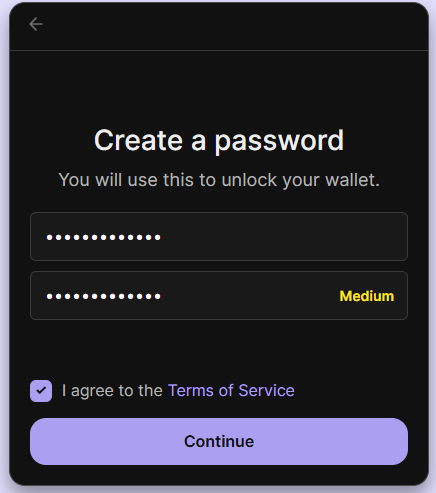
- Create and confirm your password and agree to the Terms of Service.
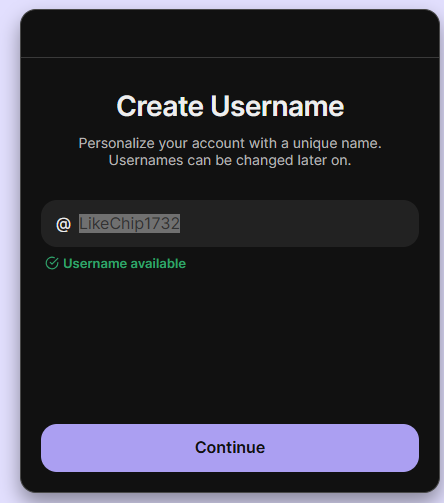
- Create your username, and you are ready to roll if it’s available. Then click on “Continue”.
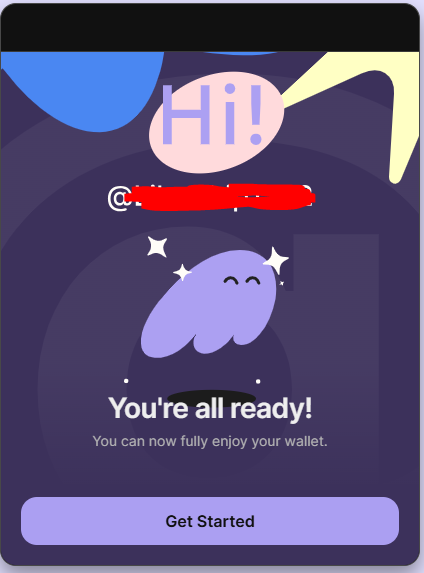
- You are now ready, set, and GO. Click on “Get Started,” and your Web3 journey starts on Phantom!
How to Import an Existing Wallet
- Click on “I already have a wallet” after downloading Phantom.
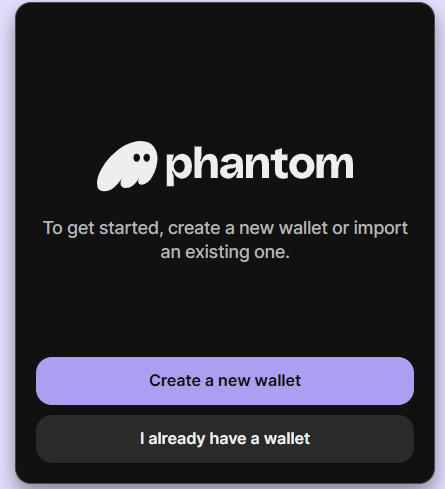
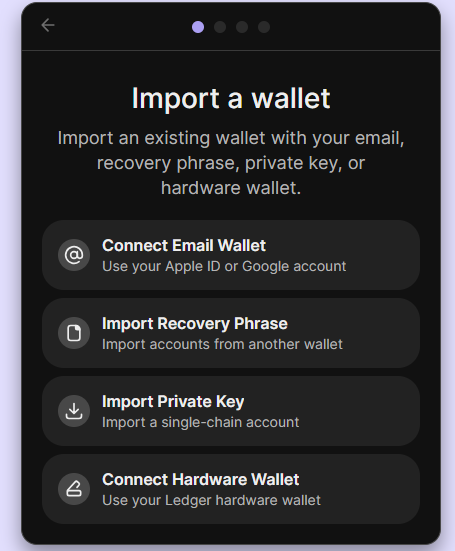
- You can import your wallet using your email account, recovery phrase, private key, or hardware wallet.
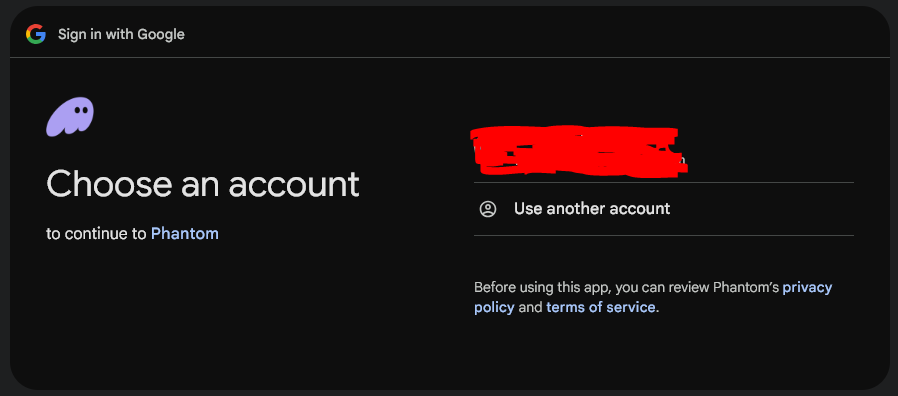
- We will use the email option. Choose an email account that you have previously used to open a Phantom wallet before.
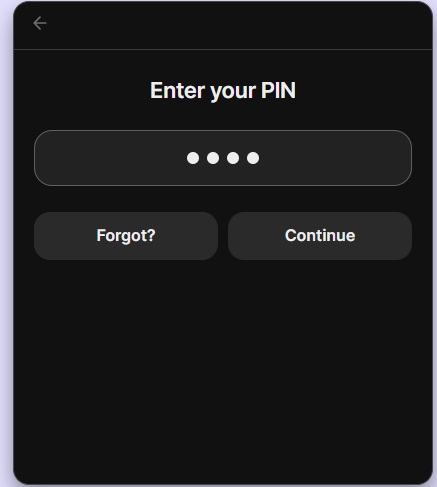
- In the next window, enter your PIN and press “Continue”.
- Create a password and agree to the Terms of Service.
- You can now get started and enjoy your Phantom wallet.
Initial Setup and Customizing
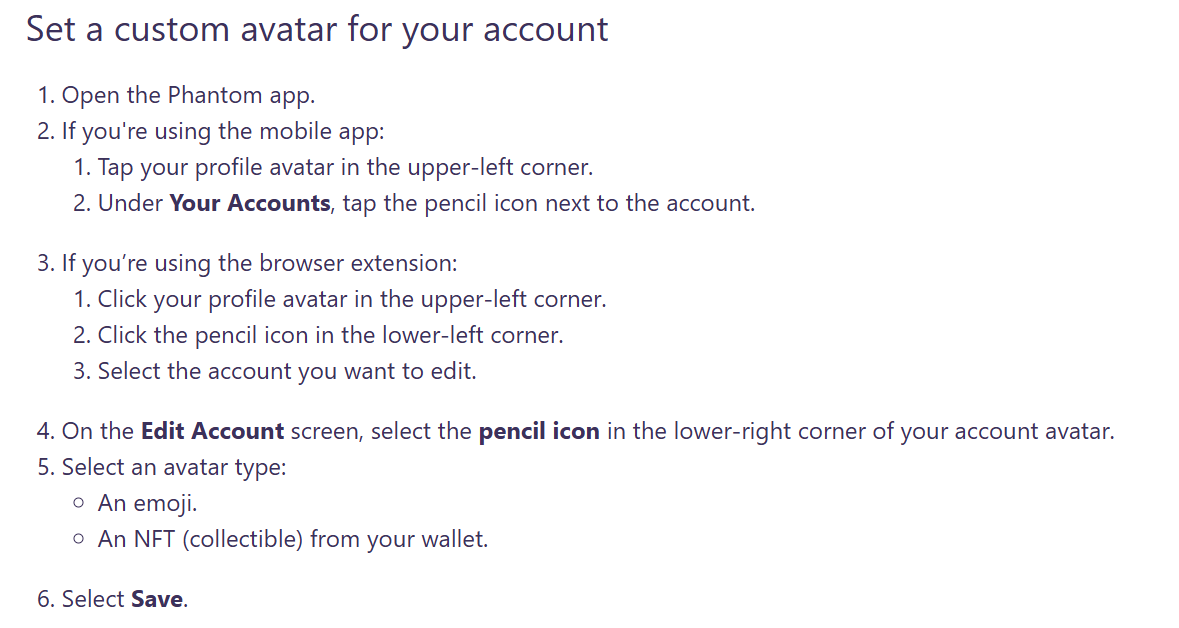
Differentiate your new Phantom wallet with avatars, themes, or multiple accounts. Enable notifications for transactions and set up a test account for testing dApps and other features without risking your funds.
Here is how you can set up a personal custom avatar for your account.
Basic Operations: How to Use Phantom Wallet
Receiving Tokens From a Different Wallet
Here are the steps you take to receive digital assets from another wallet/exchange to your Phantom wallet:
- Open Phantom: Fire up your wallet (mobile app or browser extension).
- Click on “Receive”
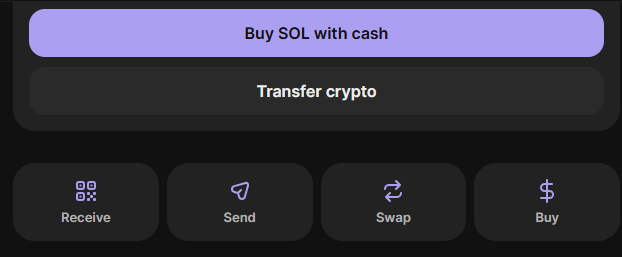
- Pick the network you want to use from the screen below.
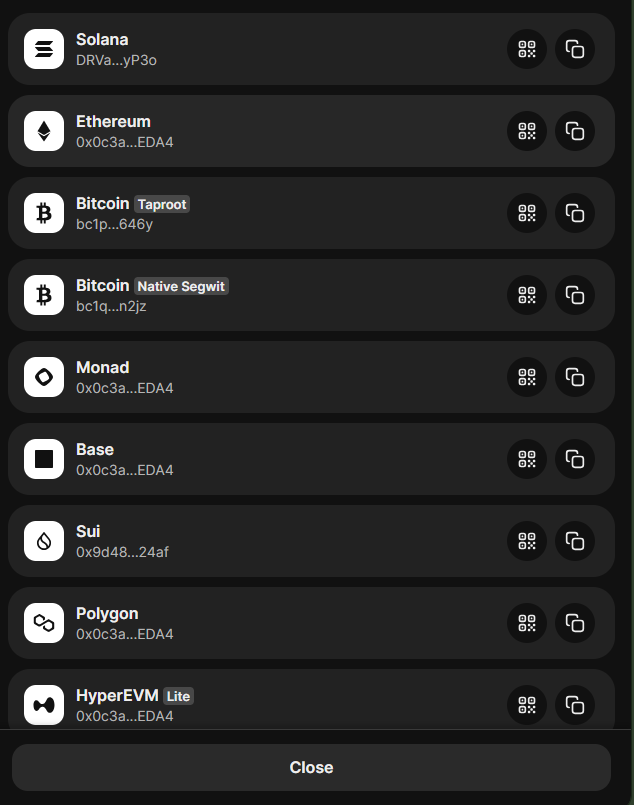
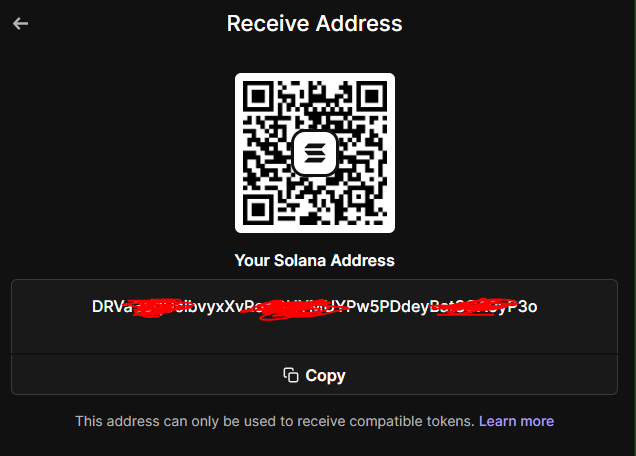
- We will use Solana for this example. Copy or scan the Solana address and share with the sender to receive compatible tokens.
Receiving Tokens From Another Phantom User
- Locate your Phantom username (@handle) in the upper left corner.
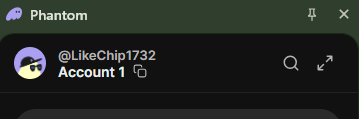
- Share the username with the sender
- The sender can use your username to send you digital tokens.
How to Send Tokens From Phantom Wallet
- Click “Send”.
- Choose the network you want to send to.
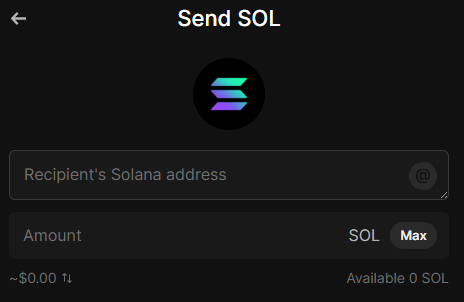
- Enter the recipient’s wallet address.
- Specify the token and amount
- Review the network fees and confirm with your PIN.
NB: For some networks such as Ethereum, ensure you have enough for gas fees. It is advisable to do a small test transaction first to ensure you don’t suffer losses.
Thoroughly check the addresses you frequently send digital assets to avoid potential address poisoning attacks.
How to View Wallet Balances and Transaction History on Phantom
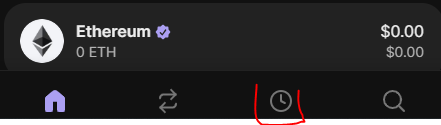
- The Phantom homescreen shows you balances based across all chains.
- Scroll to Activity to view your recent history.
Advanced Features: Maximizing Phantom Wallet
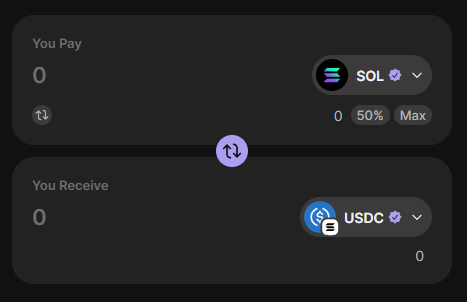
How to Swap Tokens
- On the home page, click “Swap”
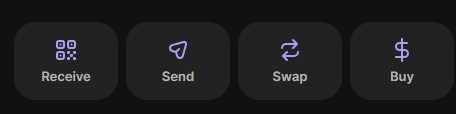
- In the next window, select the tokens to swap and Phantom routes thorugh the best DEX.
Staking Solana and Earning Rewards
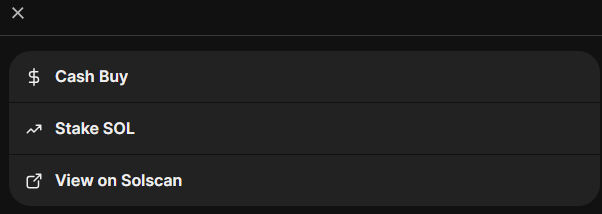
- Click on the Solana tab in the home page.
- Select “More” and then choose “Stake SOL”.
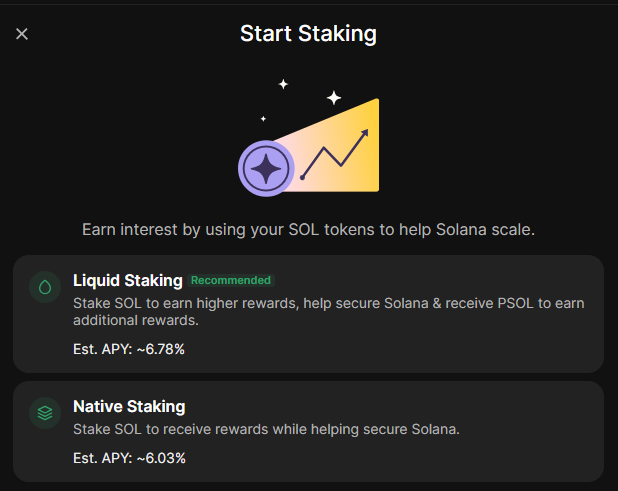
- Start staking by choosing between liquid staking and native staking.
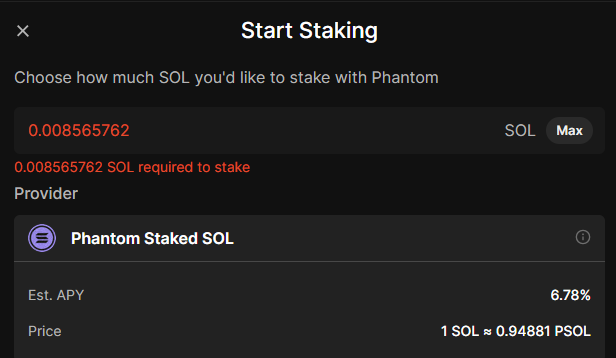
- If you choose liquid staking, enter the amount you want to stake and click “Next”.
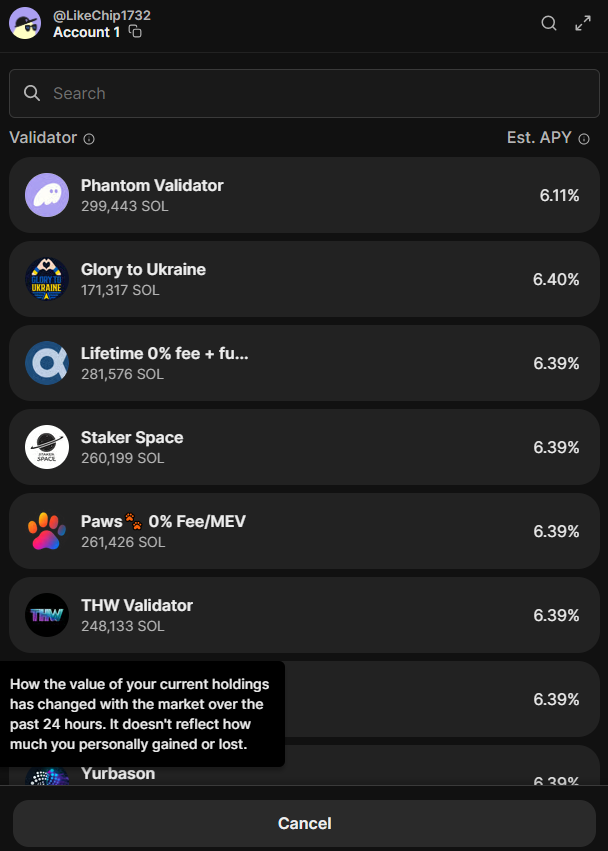
- For native staking, choose your validator and select how much you will be staking. Then click “Stake”.
Safety Best Practices for Phantom Wallet Users
- Verify sites before connecting to protect yourself against phishing and scams. Phantom warns on fakes. Use bookmarks for dApps.
- Always check phantom.app or official links. Avoid public Wi-Fi for txns.
- Integrate Ledger for cold storage. Keep hot wallet for daily use, cold for savings. Example: Store large holdings on Ledger, transfer small amounts to Phantom.
- Update Phantom via app stores. Backup phrase regularly—test recovery annually.
What You Should Never Do with Phantom Wallet
- Don’t ever share your recovery phrase or private keys, even with people who claim to represent Phantom. Scammers pose as support to steal it.
- Don’t click on unsolicited links or approve transactions blindly. Ignore airdrop links as they can potentially drain your wallet. Review details, always. Read our guide on crypto wallet drainers to learn more.
- Don’t ignore red flags such as a site asking for unlimited approvals. Check for HTTPS and reviews.
- Don’t entertain common scams targeting Phantom users.
How to Integrate Ledger Wallet With Your Phantom Browser Extension
You must first setup your Ledger hardware device by doing the following:
- Install the Bitcoin, Ethereum, Polygon, and Solana apps on your hardware wallet.
- Allow blind signing in the Solana app. Enable blind signing in the Ethereum app.
The next step is connecting your Ledger device to the Phantom browser extension.
- Connect your Ledger wallet into your computer and unlock it.
- Go to the home screen and open your Phantom wallet.
- Click your profile avatar (found in the upper-left corner).
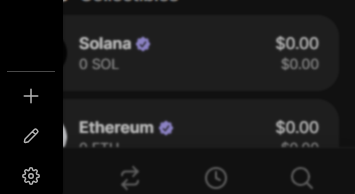
- In the bottom left account, click the plus icon.
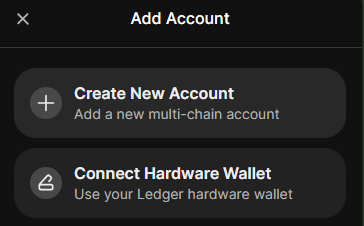
- Select “Connect Hardware Wallet”.
- Click “Connect” in the next new tab after Phantom has detected your Ledger device.
What is Wallet Hygiene?
Wallet hygiene means keeping your wallet organized and secure, like regular check-ups to prevent issues. It reduces risks from old approvals or spam. Review your token approvals on a weekly basis and revoke unused ones. Take your time to monitor transactions for anomalies.
For long-term wallet health, segregate wallets and use multisig for large sums.
How Kerberus Helps Users Use Phantom Wallets Safely
https://x.com/Kerberus/status/1888987834339733985
Kerberus Sentinel3 is a browser extension for Chrome, Firefox, and Edge, offering real-time scam protection with 99.9% accuracy.
- It supports EVM chains and Solana, bringing real security to the latter chain for the first time in its existence.
- It analyzes sites and txns in stages, using color-coded alerts (red for scams).
- Transaction Translation simulates outcomes, showing asset changes pre-sign.
Over $250m were stolen from Solana users in H1 2025 alone.
The benefits of using Kerberus are clear: flagging dodgy links and protecting digital asset holders from potential security exploits.
Wrapping Up
You are now equipped to use Phantom wallet like a pro as you can perform anything from a basic send to advanced staking. The key to safer Web3 is vigilance, good wallet hygiene, and the integration of protective tools such as Kerberus.
You must always double check before sending any digital assets. If something doesn’t feel or look right, stop and investigate further. Don’t hand out your private keys. Stay safe and protect your crypto bags at all costs.
Written by:
Werner Vermaak is a Web3 author and crypto journalist with a strong interest in cybersecurity, DeFi, and emerging blockchain infrastructure. With more than eight years of industry experience creating over 1000 educational articles for leading Web3 teams, he produces clear, accurate, and actionable organic material for crypto users.
- •8+ years in crypto & blockchain journalism
- •1000+ educational articles for leading Web3 teams
- •Former content lead at CoinMarketCap, Bybit, OKX
Related Guides
See more guides
How to revoke crypto token approvals in 2026
Mar 28, 2026 • 4 minutes read
How to Read a Crypto Transaction Before You Sign It
Mar 23, 2026 • 4 minutes read

Bitcoin 101 For Beginners: BTC’s Past, Present and Future
Mar 19, 2026 • 4 minutes read
Wallet Hygiene Guide: How To Keep Your Crypto Safe
Mar 18, 2026 • 4 minutes read
Install once & immediately get protected from scams, phishing and hacks. Zero losses for 250k+ users in 3 years. Now with up to $30,000 in coverage.